Text Merge
Text Merge combines two changed versions of a text file into one, using the common original (the base) to work out who changed what. Changes made on only one side are merged automatically. Where both sides changed the same lines differently, you have a conflict and you decide what goes into the output.
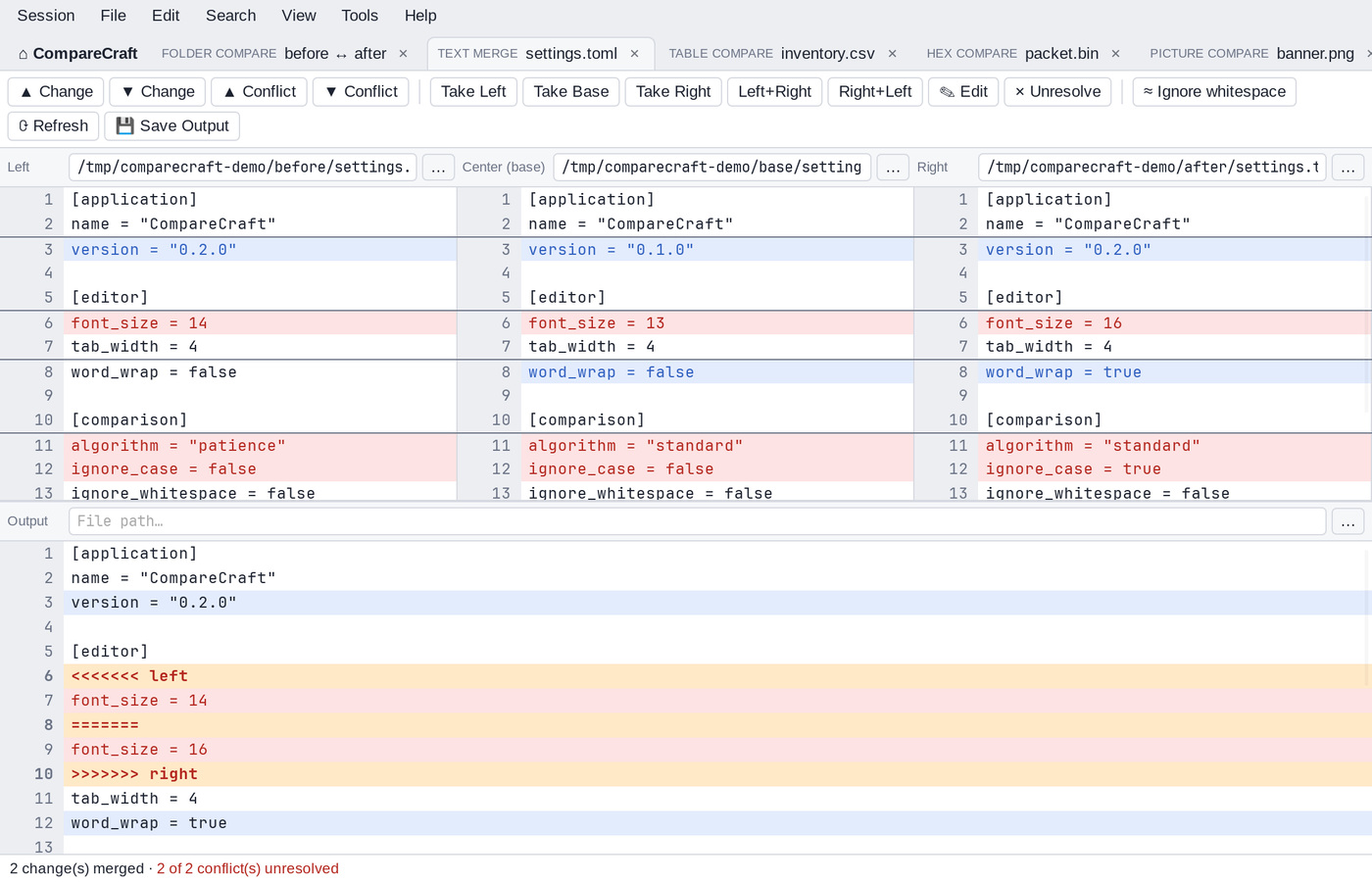
Start a merge
- On the Home view, click the Text Merge card or choose Session > New Text Merge. Then fill in the path bars: Left, Center (base) and Right for the three input files, and Output for the file to write.
- In a Text Compare, choose Session > Merge Files to open the two files as the left and right sides of a merge. Then add the base file in the Center (base) path bar.
- From a terminal, give three or four files:
comparecraft left.txt right.txt base.txt output.txt. See Command Line.
Type a path and press Enter, or click … to browse. For the Output, … opens a save dialog so you can choose a new file name.
The window
- The top area shows the three inputs in columns: Left, Center (base) and Right.
- The bottom area is the Output: the merged result. A ● badge on the Output path bar means the output has unsaved changes.
- The status bar shows how many changes were merged and how many conflicts are still unresolved, for example "12 change(s) merged · 1 of 3 conflict(s) unresolved".
Both areas are divided into sections. Click a section in either area to select it. Double-click a section to scroll both areas to it.
How changes are merged
For each section, CompareCraft compares the left and right files with the base:
- A change made only on the left is taken from the left.
- A change made only on the right is taken from the right.
- The same change made on both sides is taken once.
- Lines that were not changed are taken from the base.
- When the left and right sides changed the same lines in different ways, the section is a conflict. It stays unresolved until you choose what to use.
An unresolved conflict appears in the output between conflict markers:
Move between changes and conflicts
| Toolbar | Command | Keys |
|---|---|---|
| ▲ Change | Search > Previous Difference Section | Ctrl+P |
| ▼ Change | Search > Next Difference Section | Ctrl+N |
| ▲ Conflict | Search > Previous Conflict Section | Alt+P |
| ▼ Conflict | Search > Next Conflict Section | Alt+N |
When there are no more conflicts or changes, the status bar says so.
Resolve a conflict
Select the section, then choose what to put in the output:
| Toolbar | Edit menu | Keys | Output |
|---|---|---|---|
| Take Left | Take Left | Ctrl+L |
The left version |
| Take Base | Take Center | The base version | |
| Take Right | Take Right | Ctrl+R |
The right version |
| Left+Right | Take Left Then Right | Ctrl+B |
The left version followed by the right version |
| Right+Left | Take Right Then Left | Shift+Ctrl+B |
The right version followed by the left version |
These commands also work on sections that were merged automatically, if you want to change the result. If no section is selected, the status bar says "Select a change or conflict first."
To write your own text for a section, select it and click ✎ Edit (F2, Edit > Edit Output Section…). Change the text in the Edit merged section dialog and click Apply.
To undo a choice and mark the section as a conflict again, click ✕ Unresolve (Edit > Mark Unresolved).
Edit > Undo (Ctrl+Z) and Edit > Redo (Ctrl+Y or Shift+Ctrl+Z) undo and redo your choices.
Right-click a section for a context menu with the take commands, Edit Output Section…, Mark Unresolved, the conflict navigation commands and Save Output.
Ignore whitespace
By default, every character counts when CompareCraft looks for changes. Click ≈ Ignore whitespace to ignore differences in leading, trailing and embedded whitespace. This can turn conflicts that differ only in spacing into ordinary changes.
Save the output
Click 💾 Save Output or press Ctrl+S (File > Save Output).
- If no output file is set yet, a save dialog asks for one.
- If conflicts are still unresolved, CompareCraft warns: "N conflict(s) are unresolved and will be written with conflict markers. Save anyway?"
The output is written with the encoding and line endings of the base file (or of the left file, if there is no base).
Reload and save the session
- ⟳ Refresh (
F5, Session > Reload) reads the input files again. - Session > Save Session (
Shift+Ctrl+S) saves the merge so that you can reopen it later. See Sessions. - Session > Text Merge Info (
Ctrl+I) counts the changes and conflicts. - Session > Merge Parent Folders opens a Folder Merge of the folders that contain the left, right, base and output files.
Merge from the command line
CompareCraft can also merge files without opening a window, which is useful in version control tools. See Command Line.