Sessions
A session is a comparison that CompareCraft remembers: which kind of view it is, the files or folders being compared, and the settings of the view, such as the comparison rules and filters. Sessions let you reopen a comparison later with one click.
There are two kinds of sessions:
- Recent sessions are recorded automatically every time you open a comparison.
- Saved sessions are comparisons you have saved under a name of your choice.
Recent sessions
Every comparison you open is added to the Recent list on the Home view, with the most recent first. If you open the same files or folders in the same kind of view again, the existing entry is updated instead of a new one being added.
CompareCraft keeps the 50 most recent sessions. Older ones are removed automatically. Saved sessions are never removed automatically.
Start a session
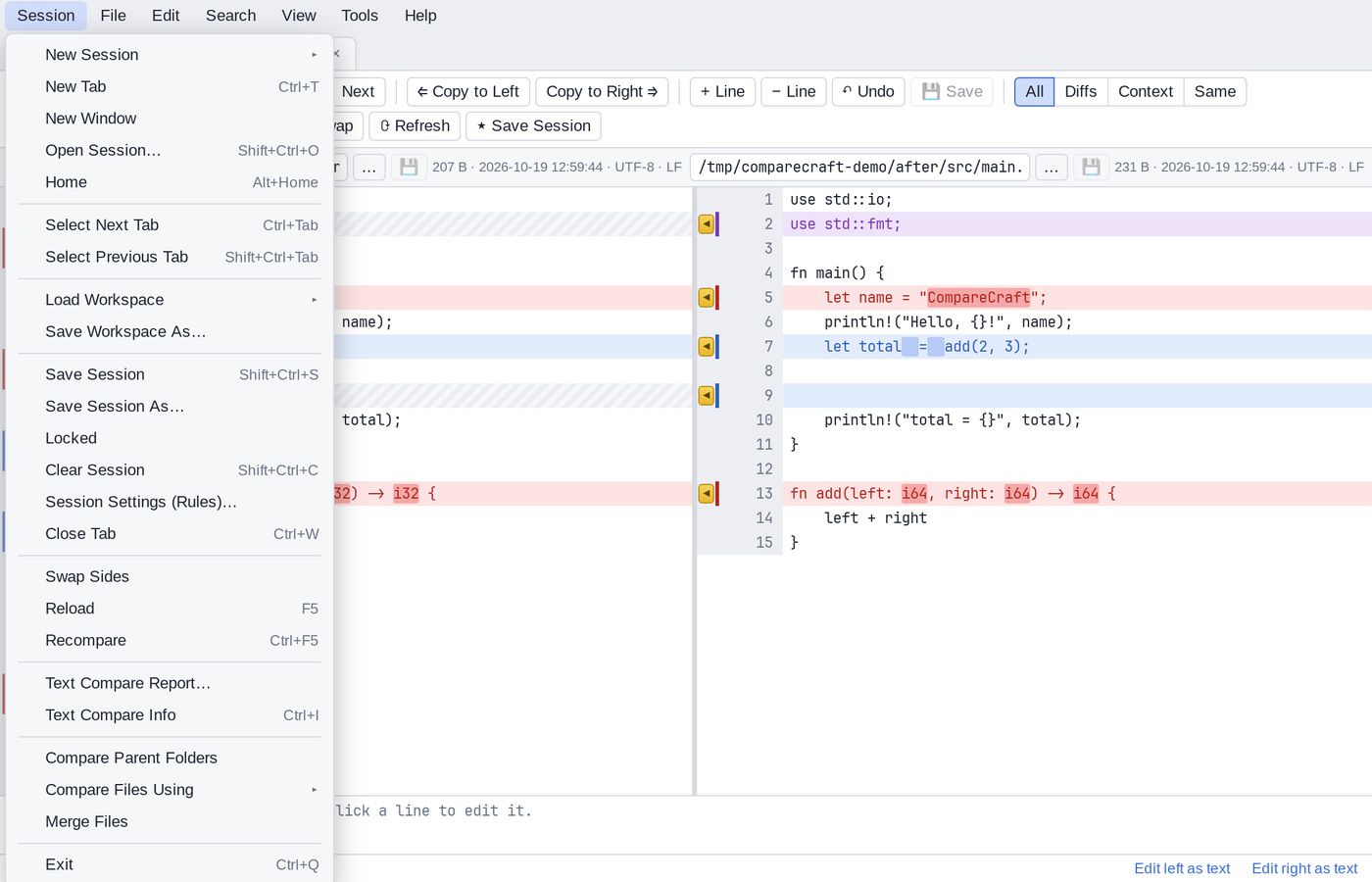
- Session > New Session opens an empty comparison of the kind you choose: Folder Compare, Folder Sync, Folder Merge, Text Compare, Text Merge, Table Compare, Hex Compare or Picture Compare.
- Session > New Tab (
Ctrl+T) and Session > Home (Alt+Home) show the Home view, where you can start a comparison or open a saved one. - Session > New Window opens a second CompareCraft window.
Save a session
- Open the comparison and set it up the way you want it.
- Choose Session > Save Session or press
Shift+Ctrl+S. In Folder Compare and Text Compare you can also click ★ Save Session on the toolbar. - If the session has no name yet, enter a name in the Save Session dialog and click OK.
The session appears under Saved sessions on the Home view, and its name is shown in the tab title. Once a session has a name, Save Session updates it without asking again.
To save a copy under a different name, choose Session > Save Session As…. If a saved session with that name already exists, it is replaced.
Every comparison view can be saved: Folder Compare, Folder Merge, Folder Sync, Text Compare, Text Merge, Table Compare, Hex Compare and Picture Compare.
Lock a session
Choose Session > Locked to protect a saved session from changes. A check mark shows that it is locked. If the session has not been saved yet, CompareCraft asks for a name and saves it first.
You can still change the comparison in the open tab, but Save Session no longer overwrites the locked session. It asks for a new name instead, as Save Session As… does. Choose Locked again to unlock the session.
Clear a session
Session > Clear Session (Shift+Ctrl+C) empties the current tab and starts a new, unsaved session of the same kind. Saved sessions are not affected. If the tab has unsaved changes, CompareCraft asks before clearing it.
Open a session
- Choose Session > Open Session… (
Shift+Ctrl+O) to show the Home view, then click the name of a session in the Saved sessions or Recent list. Hover over an entry to see its paths. - In most views, click ☰ Sessions ▾ on the toolbar to choose from the saved sessions of the same kind. The list says "(No saved sessions)" if there are none.
- From a terminal, give the session name as the only argument:
comparecraft "My project". Upper and lower case do not matter. See Command Line.
Each list entry shows the kind of comparison, the name and the time it was last saved.
Delete a session
Click the ✕ button at the end of the entry on the Home view, then confirm when CompareCraft asks "Delete session "name"?".
Change the settings of a saved session
Open the session, change the settings and save it again with Session > Save Session.
In Folder Compare and Folder Sync, the Session Settings dialog can also update the saved session directly: choose Also update saved session at the bottom of the dialog before clicking OK. You can also choose Also update session defaults to make the settings the starting point for every new folder comparison. See Session settings in Folder Compare.
Session information and reports
- The Info command on the Session menu (
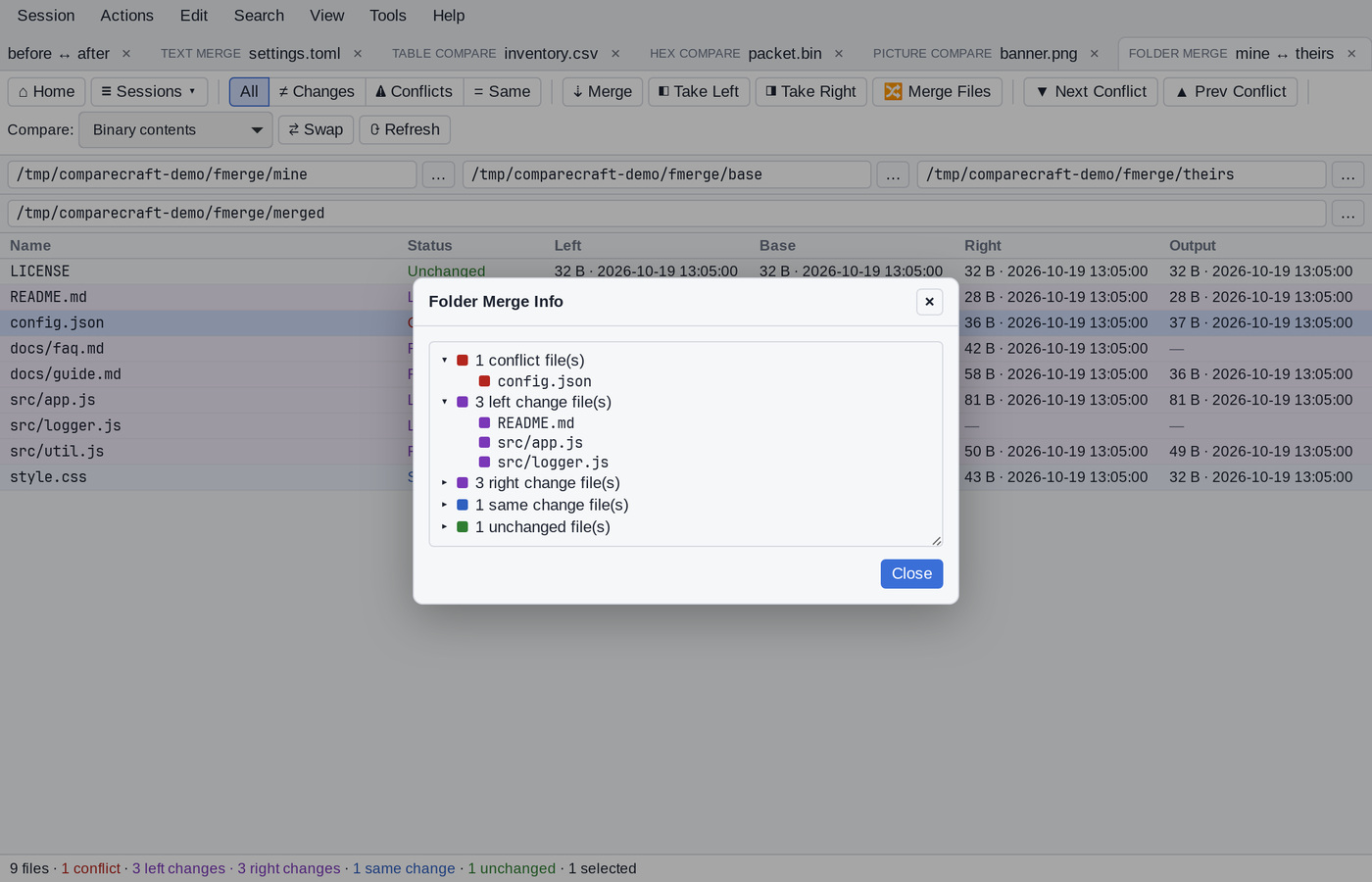
Ctrl+I), for example Folder Compare Info or Text Compare Info, shows a summary of the comparison: how many files or lines are the same, different or orphans. In folder views, expand a category to see its files. - The Report… command on the Session menu, for example Folder Compare Report… or Text Compare Report… (not in Folder Sync, Folder Merge or Text Merge), creates a report of the comparison as it is shown. See Reports.
Compare parent and base folders
- Session > Compare Parent Folders compares the folders that contain the two files or folders of the current comparison. In Text Merge this command is Merge Parent Folders and opens a Folder Merge.
- In Folder Compare, Session > Merge Base Folders opens the two base folders in a Folder Merge, and Sync Base Folders opens them in a Folder Sync. In Folder Sync the second command is Compare Base Folders.
Workspaces
A workspace is a set of open tabs saved under a name. Use workspaces to switch between groups of comparisons, for example one per project.
- Session > Save Workspace As… saves all open tabs under a name. If a workspace with that name exists, CompareCraft asks before replacing it.
- Session > Load Workspace lists the saved workspaces. Choosing one closes the open tabs and opens the tabs of the workspace. If some tabs have unsaved changes, CompareCraft asks first.
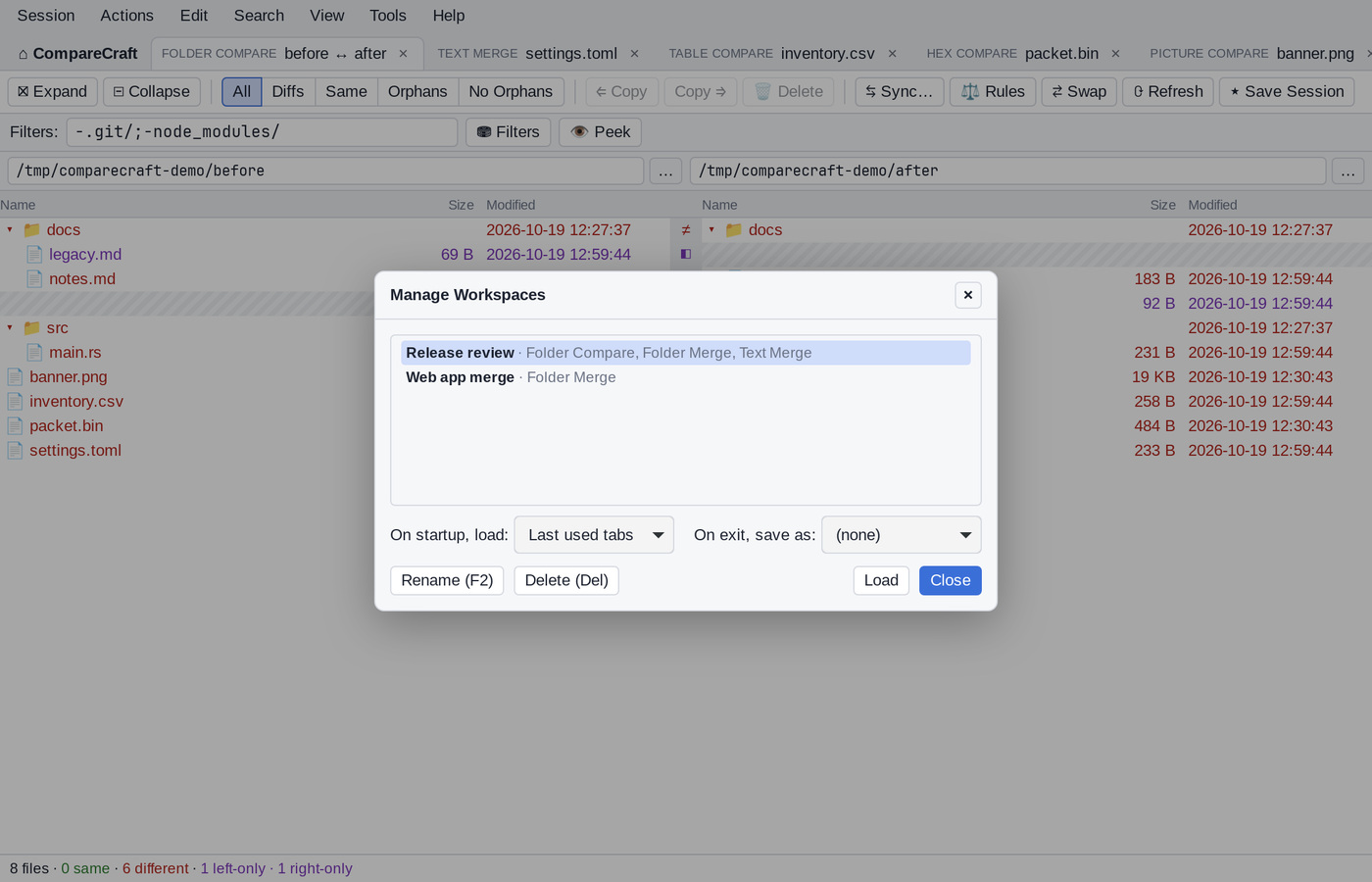
- Session > Load Workspace > Manage Workspaces… opens a list of the saved workspaces. Select one and click Rename (
F2), Delete (Del) or Load (or double-click it).
Restore your tabs at startup
CompareCraft can reopen the tabs you had open when you last closed it, or a saved workspace. On the Startup page of the Options, set:
- On exit, save workspace as: to Last used tabs (or a workspace name), and
- When starting, load workspace: to Last used tabs (or a workspace name).
The Manage Workspaces dialog has the same two settings, labelled On startup, load: and On exit, save as:.
Move sessions to another computer
Saved sessions can be included when you export your settings with Tools > Export Settings…, and brought back with Tools > Import Settings…. See Export and Import Settings.
The sessions are stored in the file sessions.json in the CompareCraft settings folder. See Settings and Data Locations.