Folder Merge
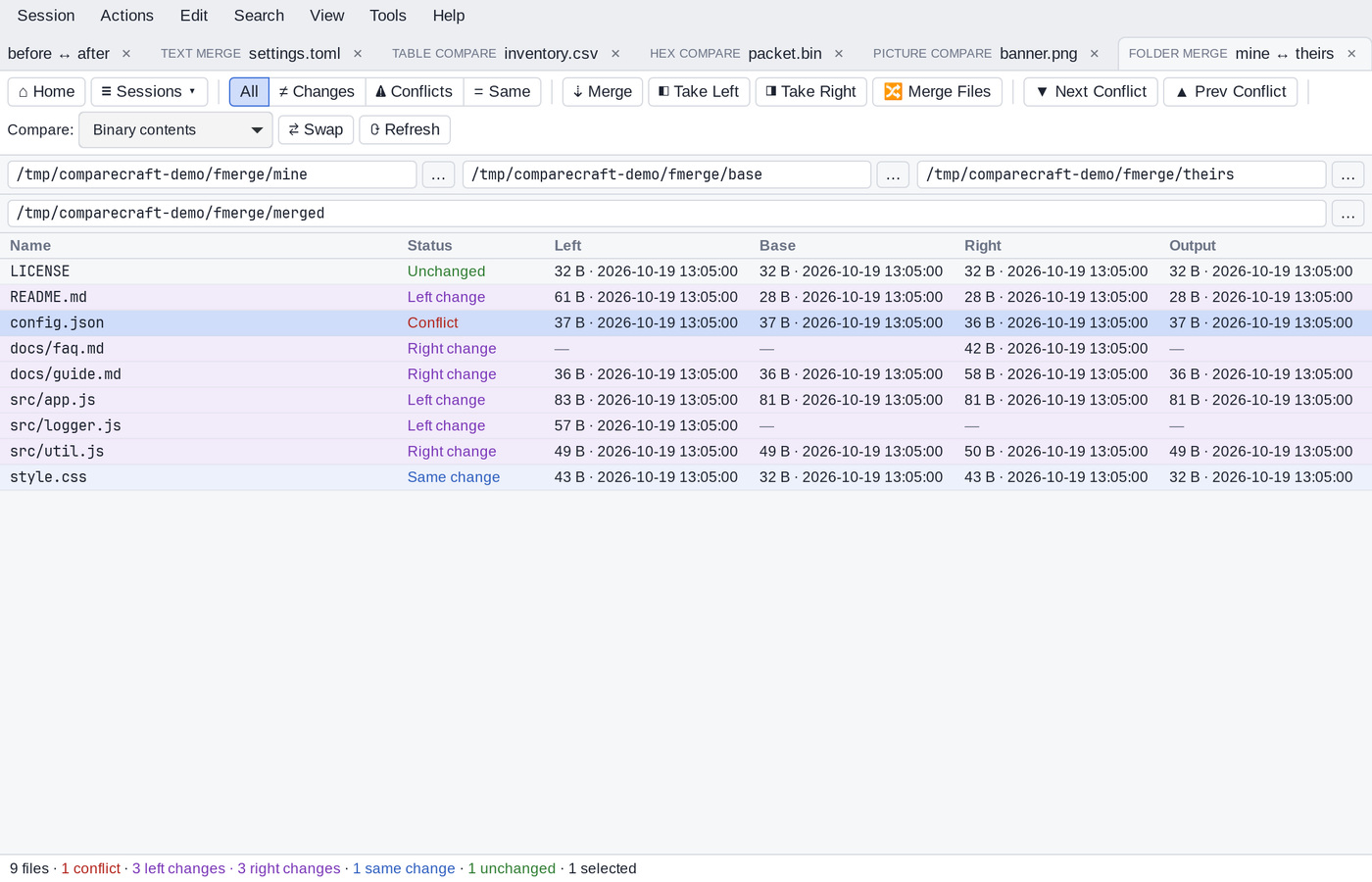
Folder Merge combines the changes made to two copies of a folder tree. You give it the two changed folders (left and right), optionally the folder they both started from (the base), and an output folder. CompareCraft works out, file by file, which side changed and copies the changed versions into the output. Files changed differently on both sides are conflicts. You resolve them one by one, with a Text Merge if needed.
Start a folder merge
- On the Home view, click Folder Merge, or choose Session > New Session > Folder Merge. Then enter the four folders in the path bars.
- In Folder Compare or Folder Sync, choose Session > Merge Base Folders. The two base folders become the left and right folders, and the left folder is the output.
- In Text Merge, choose Session > Merge Parent Folders to merge the folders that contain the merged files.
- From a terminal, give three or four folders:
comparecraft left right base [output], or use-fv=foldermerge. See Command Line.
The window
- Path bars. The first row has the Left, Base and Right folders. The second row has the Output folder, which is often the same as the left folder. Type a path and press
Enter, or click … to browse. - File list. Every file found in any of the folders, with its relative path, its merge status and the size and date of each version. A dash (—) means the file does not exist in that folder.
- Status bar. The number of files, with a count for each status. Messages about the last merge are shown here too.
Merge status
| Status | Meaning | Merge takes |
|---|---|---|
| Unchanged | Left, right and base are the same. | Nothing to do |
| Left change | Only the left side changed (including files added or deleted on the left). | The left version |
| Right change | Only the right side changed (including files added or deleted on the right). | The right version |
| Same change | Both sides made the same change. | The left version |
| Conflict | Both sides changed the file in different ways. | Nothing: resolve it yourself |
Without a base folder, CompareCraft cannot tell which side changed. A file that exists on one side only is a change on that side, and a file that differs between the sides is a conflict.
The Compare: list on the toolbar sets how files are compared: Binary contents (the default), CRC, Rules-based contents, Timestamp & size or Size. Content comparisons are more reliable for merging, because copied files often have new timestamps.
Show files
The buttons on the left of the toolbar, or the View menu, choose which files are listed:
- All shows every file.
- ≠ Changes shows files changed on either side, including conflicts.
- ⚠ Conflicts shows only conflicts.
- = Same shows unchanged files.
▼ Next Conflict (Alt+N) and ▲ Prev Conflict (Alt+P) move to the next or previous conflict.
Select files
Click a file to select it. Ctrl+click adds or removes a file, and Shift+click selects a range. Up and Down move the selection, and Shift+Up and Shift+Down extend it. The Edit menu has Select All (Ctrl+A), Select Conflicts and Select Changes.
Merge files
- ⇣ Merge (
Ctrl+M) copies the version shown in the table above to the output folder, for the selected files. If no files are selected, it merges every listed change. Conflicts are skipped. When the chosen version does not exist (the file was deleted on that side), the file is deleted from the output. - ◧ Take Left (
Ctrl+L) and ◨ Take Right (Ctrl+R) copy the left or right version of the selected files to the output, whatever their status. Use them to resolve conflicts at the file level. - 🔀 Merge Files (
Enter, or double-click a conflict) opens a Text Merge of the selected file, with the output file as the merge output. Use it to resolve conflicts line by line.
Before copying, CompareCraft asks for confirmation, unless copy confirmations are turned off under Confirmations in the Options. Files are deleted to the trash as set under Delete, and backups are made as set on the Backups page.
Compare versions
Right-click a file, or use the Actions menu, to compare two of its versions in a new tab: Compare Left with Right, Compare Left with Base, Compare Right with Base and Compare Left with Output. Double-clicking a file that is not a conflict compares left with right.
Session menu
- Folder Merge Info (
Ctrl+I) lists the files of each status. - Compare Base Folders and Sync Base Folders open the left and right folders in a Folder Compare or Folder Sync.
- Compare Parent Folders compares the folders that contain the left and right folders.
- Swap Sides exchanges the left and right folders, and Refresh (
F5) compares all folders again. - Save Session, Locked and the other session commands work as in every view. See Sessions.