Text Compare
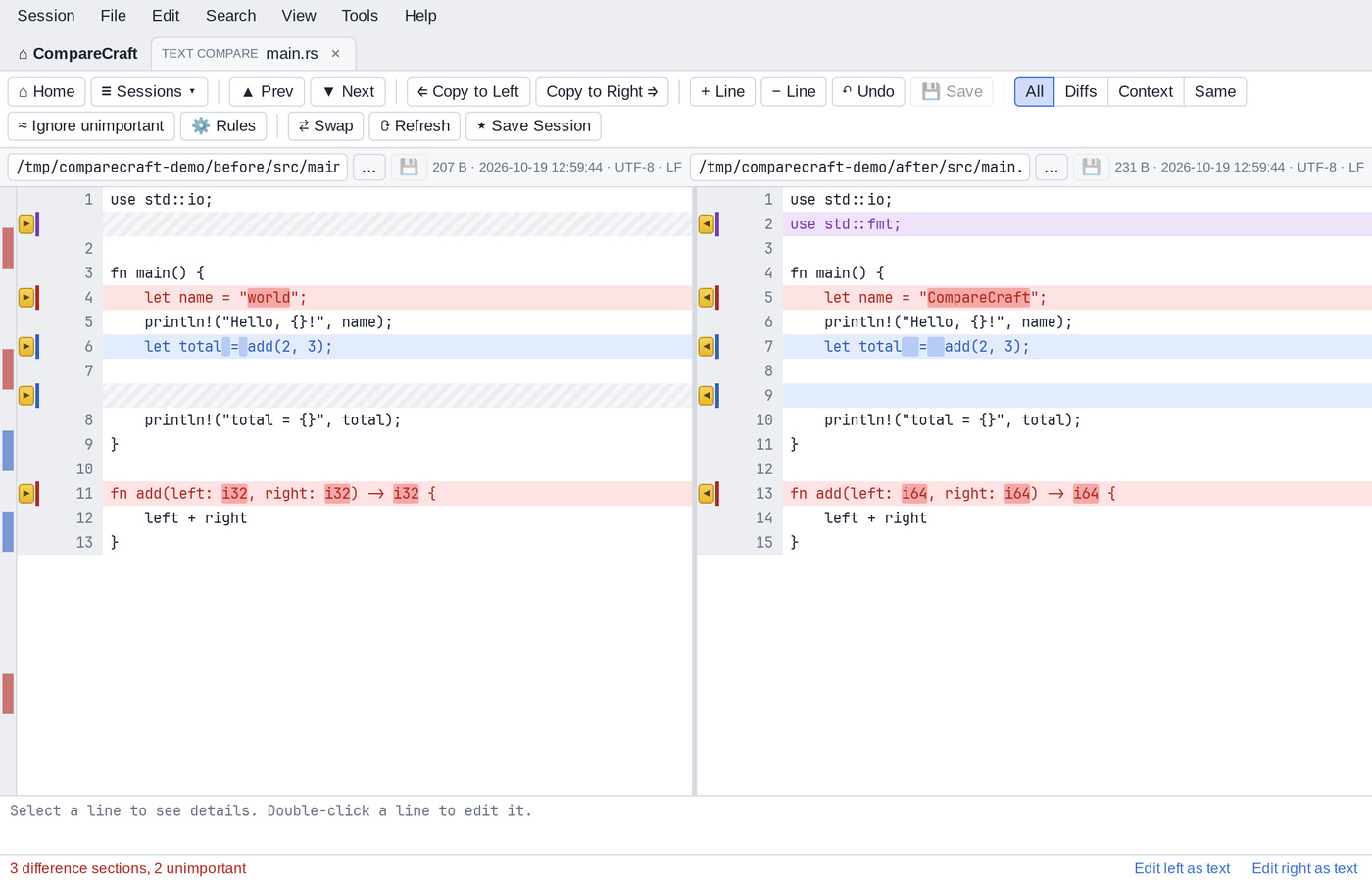
Text Compare shows two text files side by side, lines up the matching lines, and highlights what changed, down to the characters within a line. You can copy changes from one side to the other, edit either side, and save each side on its own.
Start a text comparison
- On the Home view, click the Text Compare card or choose Session > New Text Compare, then type a file path in each path bar and press
Enter(or click … to browse). - On the Home view, enter two text files under Quick compare and click Compare.
- In a Folder Compare, double-click a text file.
- From a terminal, run
comparecraft left.txt right.txt.
To load a different file into one side, click in that side and choose File > Open File… (Ctrl+O). File > Open Clipboard (Shift+Ctrl+V) replaces the side with the text on the clipboard.
If one of the files contains binary data, a banner says "One of the files looks binary." Click Open in Hex Compare to compare the files byte by byte instead.
The window
- The toolbar with navigation, copy, editing, save, view and rules buttons.
- The path bars. Each shows the file path, a 💾 button to save that side, a RO badge if the file is read-only, and a ● badge when the side has unsaved changes. Below the path, a line shows the file size, modification time, encoding (with "BOM" if the file has a byte order mark) and line ending style.
- The difference map at the far left: a narrow strip that shows where the differences are in the whole file. Click a mark to jump to it.
- The two text panes, each with a gutter, line numbers and the text.
- The details pane at the bottom, which shows the selected line from both sides, one above the other, so you can see small differences in long lines. Until you select a line it says "Select a line to see details. Double-click a line to edit it."
- The status bar, which summarizes the result: "Files are identical", "Only unimportant differences (N sections)" or "N difference sections, M unimportant".
Read the differences
Lines that match are aligned side by side. Where a line exists on one side only, the other side shows an empty gap.
- Red lines are important differences.
- Blue lines are unimportant differences, for example a change only in whitespace or letter case, depending on the comparison rules.
- Purple lines are orphans: lines that exist on one side only.
- Within changed lines, the characters that differ are highlighted.
The gutter next to each pane has a colored mark on every line that differs.
These are the default colors. You can change them on the Colors, Fonts page of the Options.
A group of neighboring changed lines is a difference section. Navigation and copy commands work on whole sections.
Show all, differences or context
Use the buttons on the toolbar (or the View menu) to choose which lines are shown:
| Button | View menu | Shows |
|---|---|---|
| All | Show All | Every line |
| Diffs | Show Differences | Only the lines that differ |
| Context | Show Context | The lines that differ, with a few unchanged lines around them |
| Same | Show Same | Only the lines that match |
The number of context lines (3 by default) is set with Context lines (Show Context): on the Text Editing page of the Options.
≈ Ignore unimportant (View > Ignore Unimportant Differences) treats unimportant differences as equal, so that they are not shown as differences and Next Difference skips them. It is off by default.
Move between differences
- Click ▼ Next or press
Ctrl+Nto go to the next difference section. Click ▲ Prev or pressCtrl+Pto go to the previous one. (Search > Next Difference Section and Search > Previous Difference Section.) - Search > Next Existing Line (
Alt+Down) and Previous Existing Line (Alt+Up) move to the next line that exists on the current side, skipping gaps. - Search > Go Left (
Alt+Left) and Go Right (Alt+Right) move the cursor to the other pane. - Search > Go To Line… (
Ctrl+G) asks for a line number on the left side and jumps to it. - Use
UpandDownto move between lines.
On the Next Difference page of the Options you can make CompareCraft go to the first difference when the files are loaded, and wrap around at the end of the file.
Copy a difference to the other side
The quickest way to copy a change is the arrow in the gutter:
- On the first line of each difference section, the gutter of the left pane shows ▶ ("Copy section to right") and the gutter of the right pane shows ◀ ("Copy section to left"). Click the arrow to copy the whole section to the other side.
- If you select several lines, the arrow appears on the first selected line instead and copies only the selected lines ("Copy selected lines to right" or "Copy selected lines to left").
The arrows are hidden when the target side is read-only.
You can also use the toolbar and keyboard:
| Action | Toolbar | Keys |
|---|---|---|
| Copy the current section to the left | ⇐ Copy to Left | Ctrl+L |
| Copy the current section to the right | Copy to Right ⇒ | Ctrl+R |
| Copy the selected lines to the left | Shift+Ctrl+L |
|
| Copy the selected lines to the right | Shift+Ctrl+R |
Right-click the gutter to see the copy commands for that side.
Select lines
- Click a line to select it and make its pane the current side.
Shift+click, orShift+UpandShift+Down, extends the selection to a range of lines.- Edit > Select Section (
Ctrl+D) selects every line of the current difference section.
Edit the text
Both sides can be edited, unless a file is read-only:
- Double-click a line, or select it and press
F2(Edit > Edit Line), to edit it in place. PressEnterto accept the change orEscto cancel. - + Line (
Ctrl+Enter, Edit > Insert Line After) inserts an empty line after the selected line. Edit > Insert Line Before (Shift+Ctrl+Enter) inserts one before it. - − Line (
Del, Edit > Delete) deletes the selected lines. - Edit > Cut (
Ctrl+X), Copy (Ctrl+C) and Paste (Ctrl+V) work on the selected lines. - Edit > Increase Indent (
Shift+Ctrl+I) and Decrease Indent (Shift+Ctrl+U) change the indentation of the selected lines. - Edit > Edit Left as Text… and Edit Right as Text… (or the Edit left as text and Edit right as text links in the status bar) open the whole side in a text box, where you can make larger changes. Click Apply to keep them.
- ↶ Undo (
Ctrl+Z) and Edit > Redo (Ctrl+YorShift+Ctrl+Z) undo and redo changes.
The comparison is updated as you edit.
Save your changes
Each side is saved on its own:
- Click 💾 Save on the toolbar or press
Ctrl+S(File > Save) to save every side that has changed. - Click the 💾 button in a path bar, or choose File > Save Left or File > Save Right, to save just that side.
- File > Save As… (
F12) saves the current side under a new name.
When a file is saved, CompareCraft keeps its encoding, byte order mark, line ending style and whether it ends with a newline. A file with mixed line endings is saved with LF line endings.
Backups
Turn on File > Create Backup on Save (or Create backup on save in the rules panel) to make a backup copy of each file before it is overwritten. The starting value and the backup file name come from the Backups page of the Options.
Reloading
Session > Reload (F5, or ⟳ Refresh on the toolbar) reads both files from disk again. If you have unsaved changes, CompareCraft asks "Reload from disk and discard unsaved changes?" Session > Recompare (Ctrl+F5) runs the comparison again without reloading.
Find text
- Press
Ctrl+F(Search > Find…). The find bar opens. - Type the text. Turn on Match case if needed.
- Press
Enteror click ▼ for the next match, andShift+Enteror ▲ for the previous one.
The search covers both sides. If nothing matches, the status bar says so. Find Next (F3) and Find Previous (Shift+F3) repeat the search. Click ✕ to close the find bar.
Comparison rules
Click ⚙ Rules on the toolbar (or choose Session > Session Settings (Rules)…) to show the rules panel. Changes take effect immediately.
Unimportant differences
Checked items count as unimportant differences (shown in blue) instead of important ones (red):
- Leading whitespace
- Trailing whitespace
- Embedded whitespace
- Character case
All four are on by default.
Orphan lines always important: when checked, lines that exist on one side only are always important differences. When unchecked (the default), orphan lines whose content is unimportant, such as blank lines, count as unimportant.
Alignment
Alignment: chooses how lines are matched between the two files:
- Standard (default): matches runs of identical lines.
- Skew tolerance: how many lines ahead to search for matching runs (default 2000).
- Unaligned: pairs lines only where they already line up, without searching ahead for matches.
- Myers O(ND): finds the smallest set of inserted and deleted lines.
- Patience Diff: anchors the alignment on lines that appear only once in each file.
Closeness matching (Standard and Patience Diff, on by default) pairs the remaining differing lines by how similar their characters are. Never align differences shows differing lines as orphans instead of pairing them.
Replacements
A replacement makes a specific change unimportant. For example, if a name was renamed everywhere, add a replacement from the old name to the new one: lines that differ only by that change are then treated as unimportant.
- Click Add… in the rules panel, or select a difference and choose Edit > Replacement… (the dialog is filled in from the current section).
- Enter the Text: and Replace with: values. Turn on Regular expression to use a pattern.
- Click OK.
The replacements are listed in the rules panel. Click ✕ on a replacement to remove it.
Mark sections as ignored
Select one or more difference sections and choose Edit > Ignored to treat them as unimportant. Choose it again to remove the mark.
Fix the alignment by hand
If CompareCraft lines up the wrong lines, you can correct it:
- Align With (
F7): select a line on one side and pressF7. The status bar says "Align With: click the right line to align with left line N (Esc cancels)." Click the line on the other side that should be next to it. - Isolate: select some lines and choose Edit > Isolate. The selected lines are aligned on their own, apart from the lines around them.
- Clear Manual Alignment removes all manual alignments.
Compare a selection with the clipboard
Select some lines and choose Edit > Compare Selection to Clipboard. A new Text Compare tab opens with the selection on the left ("Selection") and the clipboard text on the right ("Clipboard").
Other commands
- ⇄ Swap (Session > Swap Sides) exchanges the left and right files.
- Session > Compare Files Using Hex Compare opens the same files in Hex Compare.
- Session > Merge Files opens the two files in Text Merge.
- File > Open With opens the current file with Open with Default Application or Show in File Manager, in Text Edit or Text Patch (see Editing Files and Viewing Patches), or with an application you added on the Open With page of the Options.
- ★ Save Session (
Shift+Ctrl+S) saves the comparison. See Sessions.
Context menu
Right-click a line to open the context menu. It contains Align With, Isolate, Replacement, the copy and indent commands, Cut, Copy, Paste, Delete, Select Section, Compare Selection to Clipboard, Ignored, Open File, Open Clipboard, Open With, Save File and Save File As….
Encodings and line endings
CompareCraft reads UTF-8 (with or without a byte order mark), UTF-16 (with a byte order mark) and, for files that are not valid UTF-8, Windows-1252. It detects LF, CRLF and CR line endings, and shows "Mixed" when a file uses more than one. The encoding and line ending of each file are shown below its path.
Differences in line endings or encoding alone do not make lines different, because the comparison works on the text of each line.