Hex Compare
Hex Compare compares two files byte by byte. It is used for binary files, such as programs, archives and data files, where a text comparison makes no sense.
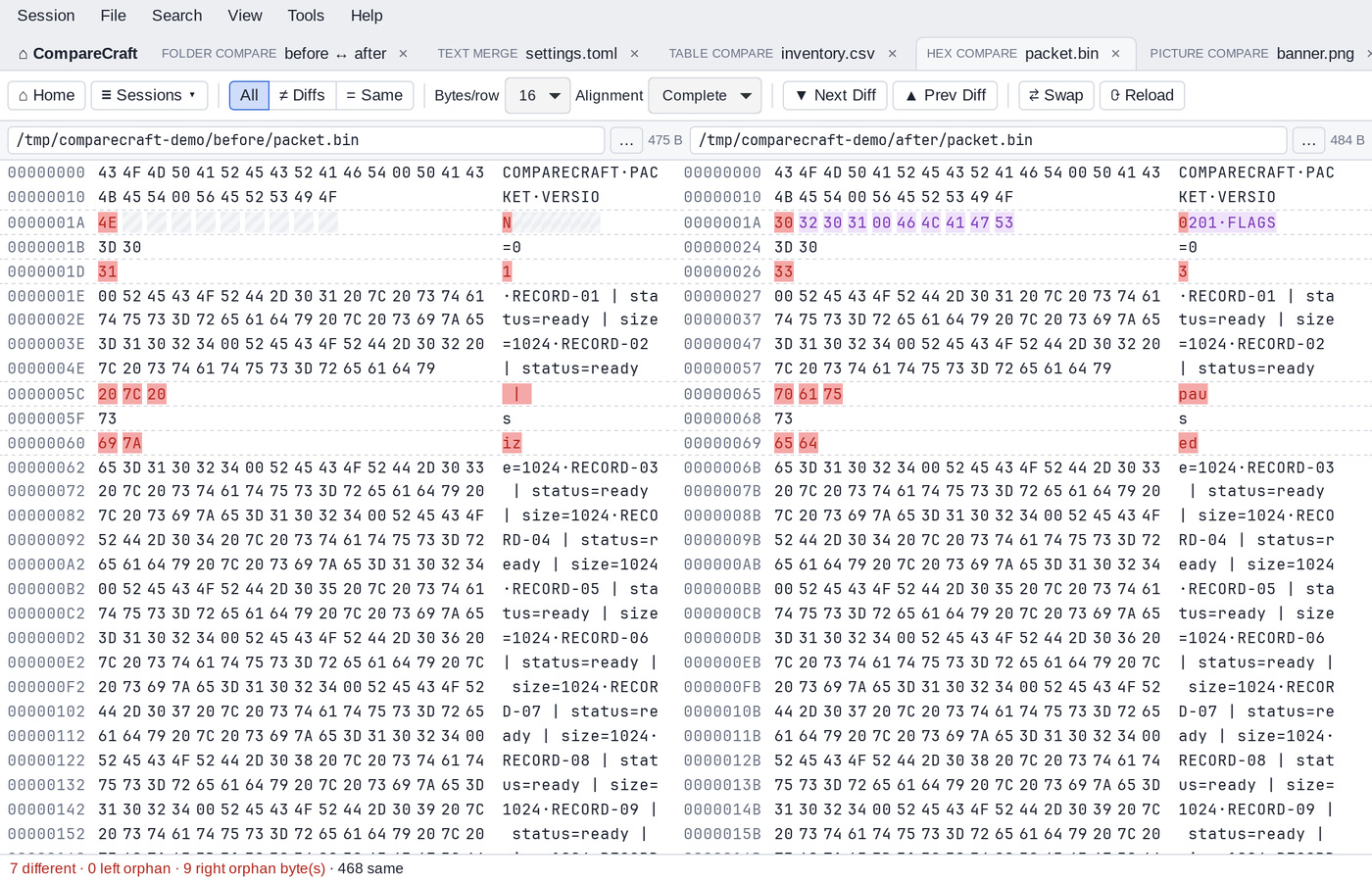
Start a hex comparison
- On the Home view, click the Hex Compare card or choose Session > New Hex Compare, then type a file path in each path bar and press
Enter(or click … to browse). - Files that contain binary data open in Hex Compare automatically, from Quick compare, a folder comparison or the command line. See File Formats.
- In a Text Compare, choose Session > Compare Files Using Hex Compare, or click Open in Hex Compare in the "One of the files looks binary." banner.
- In a Folder Compare, right-click a file and choose Open With > Hex Compare.
The window
- The toolbar with the filter, layout, navigation, swap and reload controls.
- The path bars, each with the size of the file.
- The two hex panes, side by side. Each row shows the offset (in hexadecimal), the bytes in hexadecimal, and the same bytes as characters. Bytes that are not printable characters are shown as
·. - The status bar, which shows either "Files are binary identical" or the number of different bytes, left orphan bytes and right orphan bytes, followed by the number of same bytes.
Read the differences
- Bytes that differ are highlighted as differences.
- Bytes that exist in one file only (orphan bytes, for example because bytes were inserted) are highlighted in the orphan color, and the other side shows a gap.
- Click a byte to see its details in the status bar: whether it is Same, Different, Left orphan or Right orphan, and its offset and value in the left (L) and right (R) file.
Show all, differences or same
| Button | View menu | Shows |
|---|---|---|
| All | Show All | All bytes |
| ≠ Diffs | Show Differences | Only the differences |
| = Same | Show Same | Only the matching bytes |
Bytes per row
Choose 8, 16 (default) or 32 in the Bytes/row box on the toolbar, or use View > 8 Bytes per Line, 16 Bytes per Line or 32 Bytes per Line.
Alignment
The Alignment box on the toolbar (or View > Alignment: None, Alignment: Fast, Alignment: Complete) chooses how the bytes of the two files are matched:
- None compares byte N of the left file with byte N of the right file. Use it for files that have the same layout, where bytes were changed but not inserted or removed.
- Fast anchors the comparison on matching runs of 50 bytes.
- Complete (default) also aligns the bytes between those anchors, so inserted and removed bytes are shown as orphans.
Files larger than 256 MB are always compared by position. In that case a banner says "Files are too large to align in memory; showing a positional comparison."
Move between differences
- ▼ Next Diff (
Ctrl+NorAlt+Down) and ▲ Prev Diff (Ctrl+PorAlt+Up) go to the next or previous difference. - Search > Go To Offset… (
Ctrl+G) jumps to an offset in the left file. Enter it as a decimal number, or as a hexadecimal number with the0xprefix (for example0x1F00).
Other commands
- ⇄ Swap (Session > Swap Sides) exchanges the two files.
- ⟳ Reload (
F5, Session > Reload) reads the files again. - File > Open with Default Application and File > Show in File Manager (on macOS: Reveal in Finder) act on a file.
Right-click a pane for a context menu with the navigation, filter, bytes-per-line and alignment commands, Reload, Swap Sides, Open with Default Application and Show in File Manager. The file commands act on the side you right-clicked.