Getting Started
This page shows how to install CompareCraft, start your first comparisons and find your way around the window.
Install CompareCraft
Download an installer
Installers are published on the CompareCraft releases page:
| System | Packages |
|---|---|
| Linux | .deb, .rpm, AppImage |
| Windows | .msi, NSIS .exe |
| macOS | .dmg for Apple Silicon and Intel |
Download the package for your system and install it the usual way.
On macOS 12 or later, the full app bundle also contains an experimental Finder context-menu extension. Move the app to Applications, choose the desired File manager integration actions, and enable CompareCraft in System Settings's Finder Extensions section. Source/ad-hoc builds may require properly authorized signatures and App Group entitlements before the extension can run. The app itself can still be used without Finder integration.
Unsigned downloads
The downloads are not code-signed yet. On Windows, if SmartScreen warns you, choose More info, then Run anyway. On macOS, the first time you start CompareCraft, right-click it in Applications and choose Open.
Arch Linux and Omarchy
On Arch-based systems you can build and install a package from the packaging/arch folder of the source code:
On Omarchy, CompareCraft then appears in the app launcher (Super+Space).
Build from source
If no installer fits your system, you can build CompareCraft yourself. You need:
- Rust (stable, installed with rustup) and Node.js 20 or later.
- On Linux, the WebKitGTK 4.1 development files and a C toolchain. For example, on Debian and Ubuntu:
sudo apt install libwebkit2gtk-4.1-dev build-essential curl wget file libxdo-dev libssl-dev libayatana-appindicator3-dev librsvg2-dev
- On Windows, the Microsoft C++ Build Tools ("Desktop development with C++") and WebView2. WebView2 is preinstalled on Windows 10 (1803 or later) and Windows 11.
- On macOS, the Xcode Command Line Tools (
xcode-select --install).
Then build:
git clone https://github.com/Antebios/comparecraft.git
cd comparecraft
npm install
npm run app:build
The installers are written to src-tauri/target/release/bundle/. To build only the two programs without installers, run npm run app:build:bin. This creates comparecraft (the application) and ccomp (the console version) in src-tauri/target/release/.
Start CompareCraft
Start CompareCraft from your application menu or launcher, or from a terminal:
When you give two paths, CompareCraft opens the matching comparison right away. See Command Line for all the ways to start it from a terminal.
CompareCraft runs as a single instance. If it is already running, starting it again with new paths opens a new tab in the existing window.
The Home view
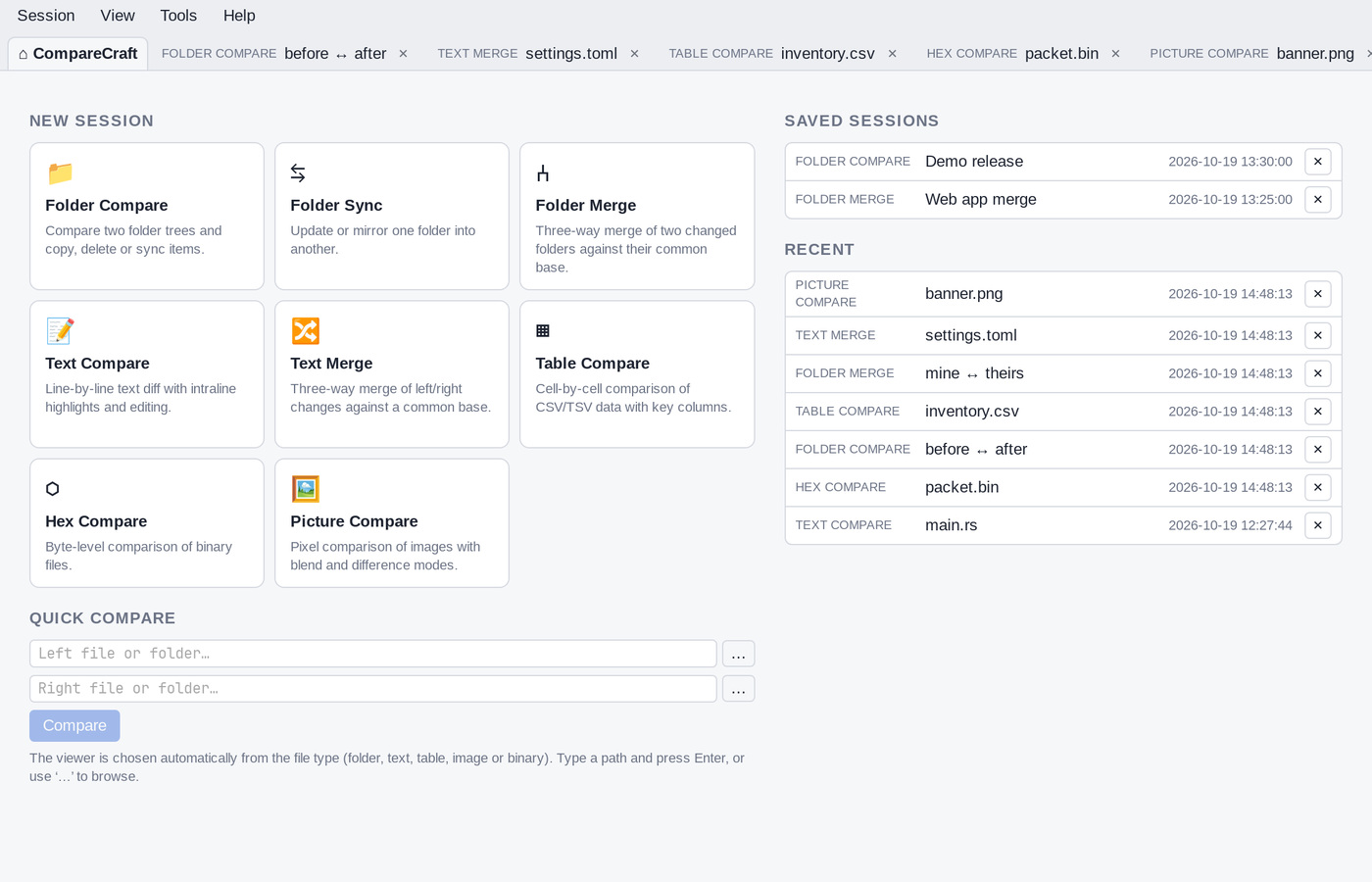
The Home view is always the first tab, labeled ⌂ CompareCraft. It has four areas:
- New session: one card for each kind of comparison. Click a card to open an empty comparison of that kind.
- Quick compare: two boxes for a left and a right file or folder, and a Compare button.
- Saved sessions: the comparisons you saved by name. See Sessions.
- Recent: comparisons you opened recently. They are listed here automatically.
To return to the Home view from anywhere, press Alt+Home or choose Session > Home. In Text, Table, Hex and Picture Compare you can also click ⌂ Home on the toolbar.
Start a comparison
From a New session card
- Click a card on the Home view: Folder Compare, Folder Sync, Folder Merge, Text Compare, Text Merge, Table Compare, Hex Compare or Picture Compare.
- A new tab opens with empty path bars.
- Type a path into each path bar and press
Enter, or click the … button next to the path bar to browse for it.
When both sides are filled in, CompareCraft compares them. You can also start an empty comparison from the Session > New Session submenu: Folder Compare, Folder Sync, Folder Merge, Text Compare, Text Merge, Table Compare, Hex Compare or Picture Compare.
With Quick compare
- Type or paste a path into Left file or folder… and Right file or folder…, or click … next to a box to browse.
- Click Compare or press
Enter.
CompareCraft picks the view for you:
- If either path is a folder, it opens a Folder Compare.
- Otherwise it chooses by file type, as set in Tools > File Formats: pictures open in Picture Compare,
.csv,.tsvand.tabfiles in Table Compare, files with binary content in Hex Compare, and everything else in Text Compare.
You can make Quick compare show a one-line result first ("Files are binary same", "Files are different" and so on) instead of opening a view. Turn on Show quick compare results for two files before opening a view in Options. Click Open view next to the result to open the comparison anyway.
From a folder comparison
In a Folder Compare, double-click a file, or select it and press Enter, to open the two versions in the matching file comparison.
Choose files and folders
Each comparison has a path bar above each side:
- Type a path and press
Enterto load it. - Click … to browse for a file or folder.
- A RO badge means that side is read-only. A ● badge means that side has unsaved changes.
To exchange the left and right sides, click ⇄ Swap on the toolbar or choose Session > Swap Sides.
Work with tabs
Every comparison opens in its own tab. Each tab shows the kind of view, the session name or the names of the two files (for example old.txt ↔ new.txt), and a ● when it has unsaved changes.
- Press
Ctrl+T(Session > New Tab) to go to the Home view and start another comparison. - Press
Ctrl+TabandShift+Ctrl+Tabto switch to the next or previous tab. - Click a tab's ✕, middle-click the tab, or press
Ctrl+Wto close it.
How tabs open and close can be changed on the Tabs page of the Options.
Save your work
- In file comparisons,
Ctrl+Ssaves the files you changed. Each view's page describes its save commands. - ★ Save Session (
Shift+Ctrl+S) saves the comparison itself, with its paths and settings, under a name so you can reopen it later. See Sessions.
Close tabs and exit
If a tab has unsaved changes, CompareCraft asks before closing it. You can turn this off with Warn when closing a tab with unsaved changes in Options.
To exit, press Ctrl+Q or choose Session > Exit. If any tabs have unsaved changes, CompareCraft asks whether to quit anyway.
The menus
The menu bar changes with the active view. Menus that have no commands for the current view are hidden.
| Menu | What it contains |
|---|---|
| Session | Home, new tabs and comparisons, tab switching, saving the session, session settings, swapping sides, reloading, and Exit. |
| File | In file comparisons: opening, saving and Open With commands. |
| Actions | In folder comparisons: opening, copying, moving, deleting, renaming and synchronizing items. |
| Edit | Undo and redo, clipboard commands, copying differences, and selection commands. |
| Search | Next and previous difference, Find, and Go To commands. |
| View | Display filters, view modes and the toolbar. |
| Tools | Options, File Formats, Profiles, settings export and import, snapshots, the text editor and the patch viewer. |
| Help | CompareCraft Help (F1), Keyboard Shortcuts (Shift+F1), Online Manual and About CompareCraft. |
Press F10 to open the menu bar from the keyboard. Right-click, press the Menu key or press Shift+F10 to open the context menu for the current selection.
Built-in help
Help > CompareCraft Help (F1) opens this manual inside the app, at the page for the current view. Help > Online Manual opens the manual website.