CompareCraft User Manual
CompareCraft compares, merges and synchronizes files and folders. It shows exactly what changed between two versions of a document, a data file, a binary file, a picture or a whole folder tree, and it lets you copy changes from one side to the other, edit files in place and bring folders into sync.
CompareCraft runs on Linux, Windows and macOS.
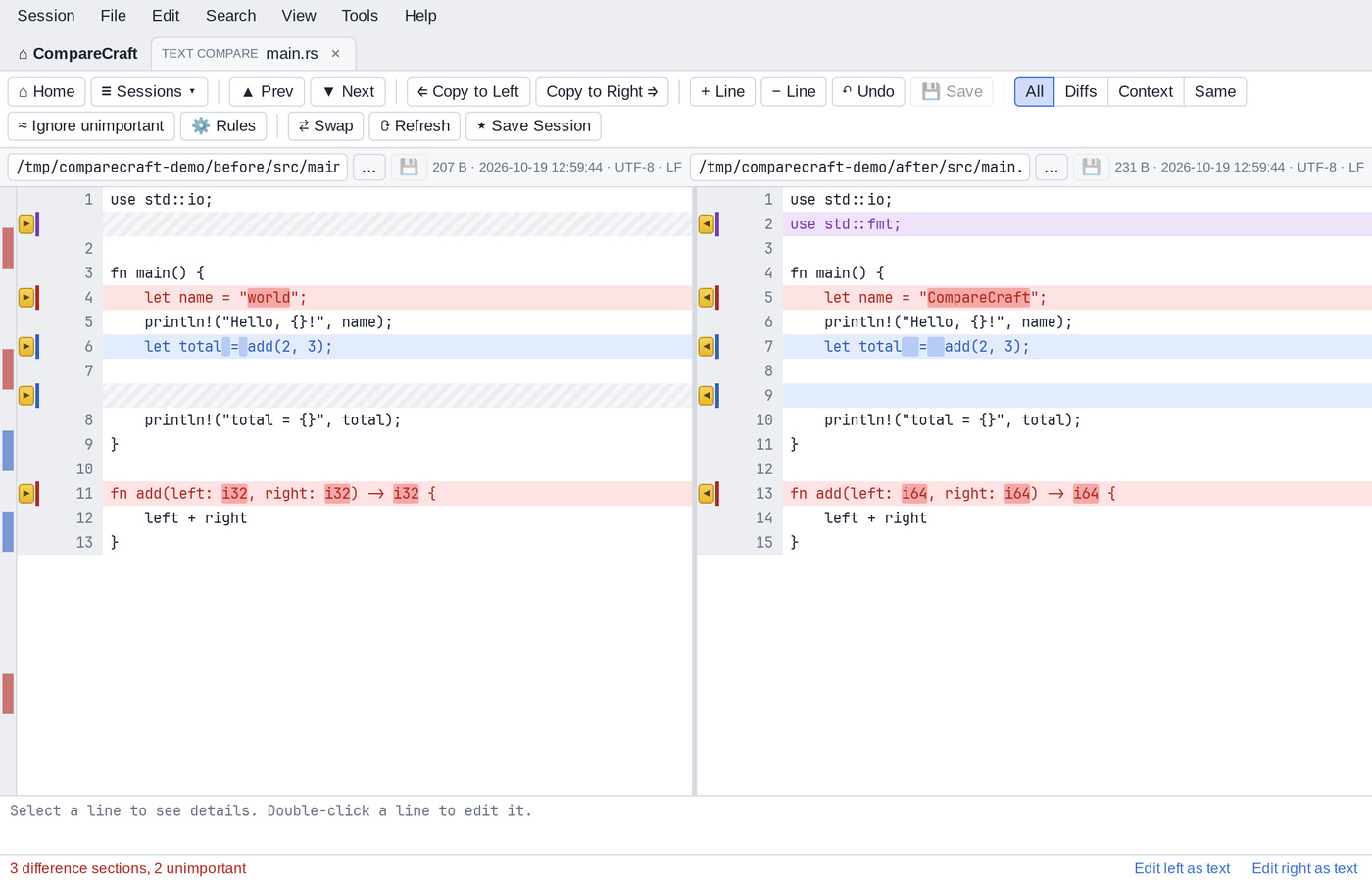
Comparison types
| Type | What it does |
|---|---|
| Folder Compare | Compare two folder trees and copy, move, delete, rename or touch items. |
| Folder Sync | Update or mirror one folder into another, with a preview of every action. |
| Folder Merge | Combine the changes of two folder trees against a common base into an output folder. |
| Text Compare | Line-by-line text comparison with intraline highlights and editing. |
| Text Merge | Three-way merge of left and right changes against a common base. |
| Table Compare | Cell-by-cell comparison of CSV and TSV data with key columns. |
| Hex Compare | Byte-level comparison of binary files. |
| Picture Compare | Pixel comparison of images with tolerance, range and blend modes. |
CompareCraft also includes a plain text editor and a patch viewer, described in Editing Files and Viewing Patches.
Where to go next
- New to CompareCraft? Start with Getting Started.
- Save and reopen your comparisons with Sessions.
- Limit a folder comparison to the files you care about with Filters.
- Adjust colors, fonts, confirmations, backups and more in Options.
- Find out where CompareCraft keeps its settings in Settings and Data Locations.
- Learn the keys in the Keyboard Shortcuts reference.
- Something not working as expected? See Troubleshooting and FAQ.
Command line and automation
CompareCraft can also be started from a terminal and driven by scripts:
- Command Line: start comparisons and open sessions from a terminal.
- Console Version: the console program for terminals and scripts.
- Scripting: automate comparisons and file operations with scripts.
- Script Reference: every script command and its options.
- Reports: create comparison reports.
Help inside the app
Press F1 in any view to open this manual at the page for that view. Press Shift+F1 for a list of the keyboard shortcuts available in the current view.