Folder Compare
Folder Compare shows two folder trees side by side and marks which files and folders are the same, different, or present on one side only. From here you can open file comparisons, copy and move items between the sides, delete, rename and touch files, and synchronize the folders.
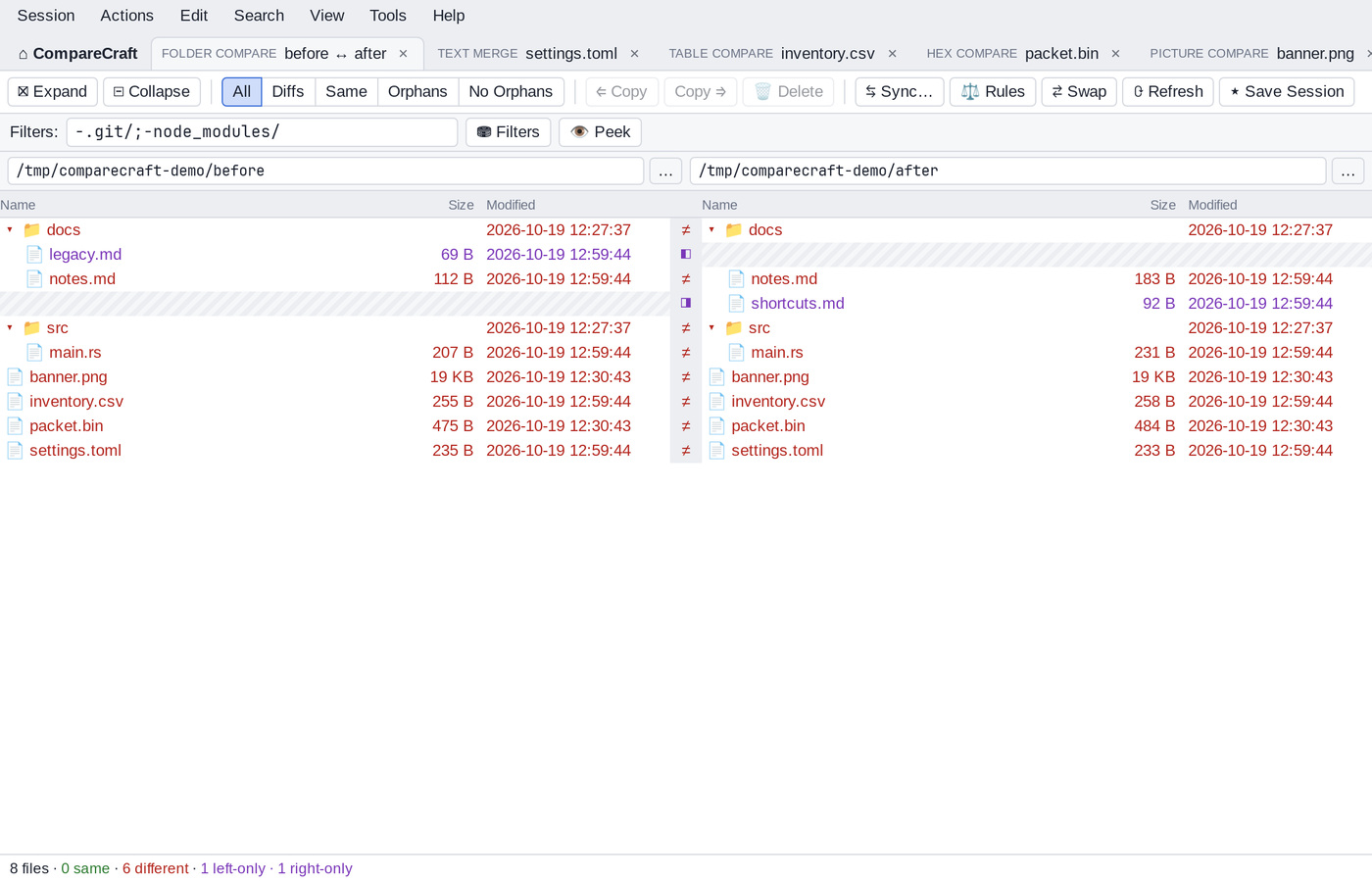
Start a folder comparison
- On the Home view, click the Folder Compare card, or choose Session > New Folder Compare. Then type a folder path in each path bar and press
Enter, or click … to browse. - On the Home view, enter two folders under Quick compare and click Compare.
- From a terminal, run
comparecraft folderA folderB.
Until both folders are set, the view shows "Choose a left and right folder to compare."
Snapshots
You can enter a snapshot file (.ccsnap) instead of a folder on either side. This compares a folder with the state it had when the snapshot was saved. See Save Snapshot.
The window
From top to bottom, the Folder Compare window has:
- The toolbar, with expand and collapse buttons, display filters, copy and delete buttons, Sync, Rules, Swap, Refresh and Save Session.
- The filter bar, with the Filters: box and the ⛃ Filters and 👁 Peek buttons. See Filters.
- The path bars for the left and right base folders.
- The two trees. Each side has the columns Name, Size and Modified. A narrow status column between the sides shows a symbol for each row.
- The status bar, with the number of files and how many are same, similar, different, left-only and right-only (plus errors, if any). When items are selected, it also shows how many are selected on each side.
To hide the Size or Modified column, use View > Columns.
Colors and status symbols
Each row is colored by its comparison result. To see the meaning of the colors at any time, choose View > Legend (Ctrl+Alt+L).
| Appearance | Status symbol | Meaning |
|---|---|---|
| Red text | ≠ | Different; this side is newer (or no timestamp winner) |
| Grey text | ≠ | Different; this side is older |
| Purple text | ◧ or ◨ | Orphan: exists on this side only (◧ left only, ◨ right only) |
| Blue text | ≈ | Similar: only unimportant differences |
| Normal text | = | Same |
| Error color | ! | Error reading or comparing |
| Ignored style | ◌ | Ignored (treated as same) |
These are the default colors of the light theme. You can change them on the Colors, Fonts page of the Options.
Folders are colored to reflect their content: a folder that contains differences is shown as different. To show folders in plain text instead, turn off Color folders to reflect content in the Options. Alternate row background (stripes) adds stripes to the rows.
Expand and collapse folders
- Double-click a folder, or select it and press
Enter, to expand or collapse it. - Press
Rightto expand the selected folder. PressLeftto collapse it, or to go to its parent folder. - Click ⊞ Expand or ⊟ Collapse on the toolbar (or View > Expand All and View > Collapse All) to expand or collapse the whole tree.
- Right-click selected folders and choose Open Subfolders or Close Subfolders to expand or collapse everything below them.
To expand folders automatically when a session is loaded, turn on Expand subfolders when loading session in Session Settings. Turn on Only expand subfolders with differences as well to expand only the folders that contain differences.
Select items
- Click a row to select the item on the side you clicked.
Ctrl+click adds items to the selection.Ctrl+click on the other side selects the rows on both sides.Shift+click selects a range of rows.- Click an empty area to clear the selection.
- Use the arrow keys,
PgUp,PgDn,HomeandEndto move the selection. AddShiftto extend it. Ctrl+LeftandCtrl+Rightselect the left or right side of the selected rows.- Edit > Select All (
Ctrl+A) and Edit > Select All Files (Shift+Ctrl+A) select everything, or only the files. - Edit > Select Newer, Edit > Select Orphans (each with Left, Right and Both) and Edit > Invert Selection help you select by status.
Most commands act on the selection, on the side or sides where it is.
Display filters
Display filters choose which rows are shown, without changing the comparison. The toolbar has five buttons:
| Button | Shows |
|---|---|
| All | Every item |
| Diffs | Differences and orphans |
| Same | Items that are the same |
| Orphans | Items that exist on one side only |
| No Orphans | Items that exist on both sides |
The View > Show submenu has more combinations: Show All, Show Differences, Show Same, Show No Orphans, Show Differences but No Orphans, Show Orphans, Show Left Newer, Show Right Newer, Show Left Newer and Left Orphans, Show Right Newer and Right Orphans, Show Left Orphans and Show Right Orphans. Press Ctrl+1, Ctrl+2 or Ctrl+3 for Show All, Show Differences or Show Same.
You can also build your own combination by turning these items on or off in the View menu: Same, Left Orphans, Right Orphans, Left Newer, Right Newer and Differences (no newer side). When a filter other than All is active, its name (or "Custom display filter") appears at the right of the filter bar.
View > Ignore Unimportant Differences (on by default) treats items with only unimportant differences as same, both for the display filters and for Next Difference.
Folder handling modes
The View menu has four modes for how folders are shown and compared:
- Always Show Folders: every folder is shown, even when none of its items pass the display filter.
- Compare Files and Folder Structure (default): folders are shown when they contain matching items, or when they match the display filter themselves (for example orphan folders).
- Only Compare Files: folders are shown only when they contain matching files.
- Ignore Folder Structure: all files of both trees are compared as if they were in one folder, paired by file name. The filter bar shows "Ignoring folder structure".
Comparison criteria
By default, files are compared by size and timestamp, with a timestamp tolerance of 2 seconds. To change how files are compared, click ⚖ Rules on the toolbar, or choose Session > Session Settings… and open the Comparison tab. See Session Settings.
To check the contents of some files without changing the criteria, select them and choose Actions > Compare Contents…. See Compare contents.
Navigate and find
- Search > Next Difference (
Ctrl+N) and Search > Previous Difference (Ctrl+P) move the selection to the next or previous different or orphan item. - Search > Find Filename… (
Ctrl+F) finds an item by name. You can enter a name or a mask such as*.rs. Find Next (F3) and Find Previous (Shift+F3) repeat the search.
What happens when there are no more differences is set on the Next Difference page of the Options.
Change the base folders
- Type a new path into a path bar and press
Enter, or click … to browse. Session > Browse for Folder > Left Side… or Right Side… also browses for a new base folder. - Select a folder and choose Set as Base Folder to make it the new base folder (with a folder selected on each side: Set as Base Folders). Set as Base on Other Side uses the selected folder as the base of the other side.
- Session > Up One Level moves to the parent folder on Both Sides, the Left Side or the Right Side.
- Session > Back (
Alt+Left) and Session > Forward (Alt+Right) move through the base folders you used before. - ⇄ Swap (Session > Swap Sides) exchanges the two sides.
Open file comparisons
- Double-click a file, or select it and press
Enter, to open the left and right versions in a new tab. CompareCraft chooses the view by file type (see File Formats). - To choose the view yourself, right-click the file and choose Open With, then Text Compare, Hex Compare, Table Compare or Picture Compare. For folders, Open With offers Folder Compare and Folder Sync.
- Select a folder and choose Open in New View to compare that pair of subfolders in a new tab.
- Open With > Associated Application opens the file in the program your system uses for it. Open With > Show in File Manager (on macOS: Reveal in Finder) shows it in your file manager.
- Applications you add on the Open With page of the Options appear at the end of the Open With submenu.
To check whether two files differ without opening them, select them and choose Quick Compare. A message shows the result.
Compare To
Compare To compares any two items, even if they have different names or are in different folders.
- Select a file or folder and press
F7(Actions > Compare To…). - The status bar shows: "Compare To: click the file to compare “name” with, or press Esc to cancel." The mouse pointer changes to an arrow with a question mark.
- Click the item to compare with. It can be on either side, but it must be of the same kind (a file for a file, a folder for a folder).
The comparison opens in a new tab. The item from the left side goes on the left.
While Compare To is waiting, the context menu and the Actions menu also offer Compare to name and, for files, Compare in Text Compare, Compare in Hex Compare, Compare in Table Compare and Compare in Picture Compare. To cancel, press Esc or choose Cancel "Compare to name".
Align With
If a file was renamed, it shows up as two orphans: one on each side. Align With pairs them so that they are compared with each other.
- Select the orphan, or select the left orphan and the right orphan (both in the same folder).
- Press
F6(Actions > Align With…). - If you selected one orphan, choose the item to pair it with from the list of unmatched items on the other side, then click OK.
To undo the pairing, select the aligned row and choose Unalign. All pairings are listed on the Misc tab of Session Settings, where you can delete them.
Copy and move files
- To copy the selected items to the other side, click ⇐ Copy or Copy ⇒ on the toolbar, press
Ctrl+L(copy to left) orCtrl+R(copy to right), or choose Copy to Side… (shown as Copy to Right… or Copy to Left… when the direction is clear). - To move items to the other side, choose Move to Side….
- To copy or move items to another folder, choose Copy to Folder… or Move to Folder….
The Copy to Side and Move to Side dialogs show what is selected and let you choose the direction: Left to right → or ← Right to left. Click Start to run the operation. In the Copy dialog, Don't show again skips the dialog the next time. Moving does not move folders that contain hidden items.
The Copy to Folder and Move to Folder dialogs ask:
- From: Left side or Right side (when items are selected on both sides).
- The destination folder, with Browse….
- How to keep the folder structure: Keep relative folder structure, Keep base folder structure or Don't keep folder structure.
When a copy would replace an existing file, the Confirm File Replace dialog asks "Would you like to replace the existing file … with this one?" Answer Yes, Yes to All, No, No to All or Cancel.
Confirmations and backups are set on the File Operations and Backups pages of the Options.
Delete files
- Select the items and press
Del(or click 🗑 Delete, or choose Delete…). - In the dialog, choose which sides to delete from (Left side, Right side).
- Leave Use recycle bin if possible on to move the items to the trash, or turn it off to delete them permanently.
- Click Delete.
Shift+Del (Delete Permanently) deletes without using the trash.
Rename files
- Select the items and press
F2(Rename…). - Choose DOS compatible to rename with wildcard masks, or Regular expressions to rename with a pattern.
- Enter the Old mask and New mask (or the Old pattern and New pattern). The dialog shows a live preview of the new names.
- Click Start.
Change attributes
Choose Attributes… to change the permissions of the selected items. Check a box to set an attribute and uncheck it to clear it. Greyed boxes are left unchanged.
- On Linux and macOS, there are Read, Write and Execute boxes for the owner, the group and others, and a Permissions (octal): box.
- On Windows, there is a Read-only box.
Touch files
Touch… changes the modified time of the selected items:
- Choose the sides (Left side, Right side), and turn on Including folder contents to touch everything inside selected folders.
- Copy timestamps from other side gives each item the timestamp of its counterpart.
- Set timestamps to → sets a date and time you choose. The Default: buttons fill in the Current system time or the Last touch time.
Create folders
Press Ins (New Folder…), enter a Name: (default "New Folder") and click OK. The folder is created inside the selected folder if it is expanded, otherwise next to the selected item. With nothing selected, it is created in the base folder of the side you clicked.
Exclude items
Exclude removes the selected items from the comparison by adding them to the session's file filters. When all selected files have the same extension, Exclude… opens a dialog where you can exclude:
- Selected filename (or Selected filenames), or All .ext file types (for files without an extension: All files without an extension).
- Only in this folder, to exclude them in this folder only.
- Don't show again during this session, to skip the dialog next time.
To see excluded items again, use 👁 Peek or edit the filters. See Filters.
Other commands
- Copy Filename copies the full paths of the selected items to the clipboard.
- Ignored marks the selected items as ignored: they are treated as same and shown with ◌. Choose it again to remove the mark.
- Refresh Selection (
Shift+F5) compares the selected items again. - Edit > Refresh (
F5, or ⟳ Refresh on the toolbar) compares both folders again. Edit > Full Refresh (Ctrl+F5) also clears the Ignored marks. - View > Log shows a log of the operations and messages of this view. Click Clear to empty it.
Compare contents
Select files and choose Compare Contents… to compare their contents with their counterparts:
- CRC comparison compares checksums.
- Binary comparison compares the files byte by byte.
- Rules-based comparison (default) compares the files as text, using the comparison rules, so files that differ only in unimportant ways count as similar.
With Show results dialog on, a list shows the Result for each File: Binary same, Same, Binary differences, Unimportant differences, Important differences or Error. Double-click a file in the list to open it.
File compare report
Select one or more files and choose File Compare Report… (on the Actions menu and the context menu). If all selected files are of the same type, the report dialog of that viewer opens, for example Text Compare Report. Otherwise the File Compare Report dialog reports each file with the viewer for its type. See Create reports in the application.
Session menu commands
- Folder Compare Info (
Ctrl+I) shows how many files are same, orphans, newer or different. Expand a category to list its files. - Folder Compare Report… creates a report of the comparison as shown, with the expanded folders, filters and columns of the view. See Reports.
- Compare Parent Folders compares the folders that contain the two base folders, in a new tab.
- Merge Base Folders opens the two base folders in a Folder Merge.
- Sync Base Folders opens the two base folders in a Folder Sync. In Folder Sync this command is Compare Base Folders and opens a Folder Compare.
- Save Session, Save Session As…, Locked and Clear Session (
Shift+Ctrl+C) are described in Sessions.
Synchronize folders
Click ⇆ Sync… on the toolbar, or choose a command from Actions > Synchronize: Update Right…, Update Left…, Update Both…, Mirror to Right… (Shift+Ctrl+R) or Mirror to Left… (Shift+Ctrl+L). See Folder Sync.
Context menus
Right-click a row (or press the Menu key or Shift+F10) to open the context menu for the selection. It contains the commands of the Actions menu that apply to the selected items.
Right-click the empty area below the rows for Refresh, Full Refresh, New Folder, Select All, Expand All, Collapse All and Legend.
Session settings
Choose Session > Session Settings… to open the Folder Compare - Session Settings dialog. The ⚖ Rules button opens it on the Comparison tab, and ⛃ Filters on the Name Filters tab.
Specs
- Left folder: and Right folder:, each with Browse…. ⇅ Swap exchanges them; ↓ Copy and ↑ Copy copy one path to the other. A snapshot file (
.ccsnap) can be used in place of a folder. - Description: a free-text note for the session.
Comparison
Quick tests:
- Compare file size: always on.
- Compare timestamps, with a tolerance in seconds (2 by default). Turn this off to compare by size only.
- Ignore daylight saving time differences: timestamps exactly one hour apart count as equal.
- Ignore timezone differences: timestamps a whole number of hours apart (up to 24) count as equal.
- Compare filename case: when on, names that differ only in case are treated as different items. By default it is off on Windows and macOS and on on Linux.
Requires opening files:
- Compare contents, using CRC comparison, Binary comparison or Rules-based comparison.
Options shown greyed out are not supported yet.
Handling
- Expand subfolders when loading session, and Only expand subfolders with differences.
- Follow symbolic links (off by default).
- Automatic refresh every N seconds: refreshes the comparison automatically (at least every 5 seconds).
Archives are always compared as files.
Name Filters and Other Filters
These tabs set which files and folders are included in the comparison. See Filters.
Misc
- Alignment overrides: the pairs created with Align With, with Delete and Delete All buttons.
- Name filter presets: the list of presets offered in the Filters box.
Applying the settings
At the bottom of the dialog, choose where the changes apply:
- Use for this view only.
- Also update session defaults: new folder comparisons start with these settings.
- Also update saved session: also stores the settings in the saved session (only for sessions saved by name).
Then click OK or Apply.
Save the session
Click ★ Save Session or press Shift+Ctrl+S to save this comparison, including its settings and filters, under a name. Session > Save Session As… saves it under another name. See Sessions.