Picture Compare
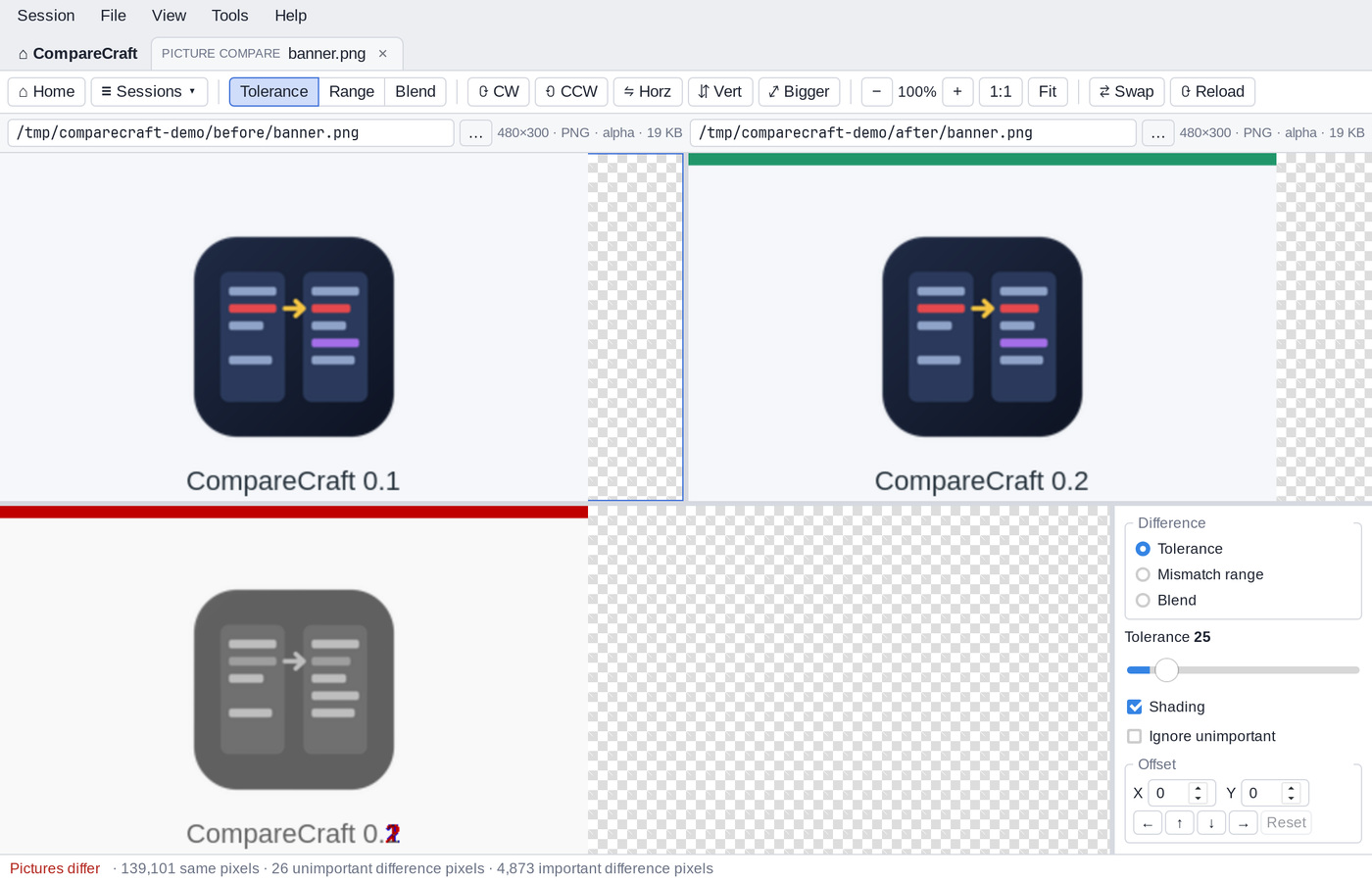
Picture Compare shows two images side by side and, below them, a difference picture that shows which pixels differ and by how much. You can switch between several difference modes, adjust the tolerance, shift one picture against the other, and rotate, flip or scale the pictures.
Start a picture comparison
- On the Home view, click the Picture Compare card or choose Session > New Picture Compare, then type a file path in each path bar and press
Enter(or click … to browse). - Picture files (such as
.png,.jpg,.gif,.bmp,.webpand.svg) open in Picture Compare automatically, from Quick compare, a folder comparison or the command line. The full list is in File Formats. - In a Folder Compare, right-click a file and choose Open With > Picture Compare.
Supported formats include PNG, JPEG, GIF, BMP, TIFF, WebP, ICO, TGA, PNM, QOI, SVG and AVIF.
The window
- The toolbar with the mode, transform, zoom, swap and reload buttons.
- The path bars. Below each path, a line shows the picture size in pixels, the format, "alpha" if the picture has transparency, and the file size.
- The left and right pictures at the top.
- The difference picture at the bottom.
- The controls panel next to the difference picture, with the difference mode, its settings, the offset and the pixel details.
- The status bar, which says "Pictures differ" or "Pictures are the same", followed by the number of same pixels, unimportant and important difference pixels, and left and right orphan pixels.
All three picture panes scroll together.
Difference modes
Choose a mode with the buttons on the toolbar, the Difference options in the controls panel, or the View menu:
| Toolbar | Controls panel | View menu | Keys |
|---|---|---|---|
| Tolerance | Tolerance | Tolerance Mode | Ctrl+1 |
| Range | Mismatch range | Mismatch Range Mode | Ctrl+2 |
| Blend | Blend | Blend Mode | Ctrl+3 |
Tolerance
The default mode. Each pixel of the difference picture is colored:
- White (or gray): the pixels are identical.
- Blue: the pixels differ by no more than the tolerance. These are unimportant differences.
- Red: the pixels differ by more than the tolerance. These are important differences.
Settings in the controls panel:
- Tolerance: the largest difference, per color channel (0 to 255), that is still unimportant. The default is 25. Set it to 0 to make every difference important.
- Shading (on by default, View > Shading (Ghost)): shades the colors by the brightness of the pictures, so you can still see the outlines of the picture in the difference picture.
- Ignore unimportant (off by default, View > Ignore Unimportant Differences): shows differences within the tolerance in the same color as identical pixels.
Mismatch range
The difference picture is black where the pixels are the same, and yellow where they differ. The bigger the difference, the brighter the yellow. This makes small differences easy to find.
Blend
The difference picture shows the two pictures blended together.
- Blend: the weight of the right picture, from 0% to 100% (default 50%).
- Blend toggle (
F8, View > Blend Toggle): switches between the left and the right picture, so you can flip back and forth to spot changes.
Shift the pictures against each other
If one picture is shifted a few pixels compared with the other, use the Offset settings in the controls panel to line them up:
- Enter the X and Y offset of the right picture, or click the ←, ↑, ↓ and → buttons to move the right picture one pixel at a time.
- Click Reset (View > Reset Difference Offset) to set the offset back to 0.
Areas that are covered by only one picture are orphan areas. They are counted as left or right orphan pixels.
Rotate, flip and scale
The rotate and flip buttons act on the current side. Click a picture to make it the current side.
| Toolbar | View menu |
|---|---|
| ⟳ CW | Rotate Clockwise |
| ⟲ CCW | Rotate Counterclockwise |
| ⇋ Horz | Flip Horizontally |
| ⇵ Vert | Flip Vertically |
| ⤢ Bigger | Auto Scale |
⤢ Bigger scales the smaller picture to match the bigger one, which is useful when you compare a picture with a resized copy.
Zoom
| Toolbar | View menu | Keys |
|---|---|---|
| + | Zoom In | Ctrl+Plus |
| − | Zoom Out | Ctrl+Minus |
| 1:1 | Actual Size | Ctrl+0 |
| Fit | Fit to Window |
The current zoom level is shown between the − and + buttons.
Pixel details
Move the mouse over a picture to see the position (x and y) and the color values of that pixel in the left and right picture, in the Pixel details section of the controls panel.
Other commands
- ⇄ Swap (Session > Swap Sides) exchanges the two pictures.
- ⟳ Reload (
F5, Session > Reload) reads the files again. - File > Open with Default Application and File > Show in File Manager (on macOS: Reveal in Finder) act on the picture of the current side.
Right-click a picture or the difference picture for a context menu with the mode commands and the other picture commands.
Transparency
The pixel statistics in the status bar compare only the color channels. Differences in transparency alone are not counted.