Table Compare
Table Compare compares two files of delimited data, such as CSV and TSV files, cell by cell. Rows are matched by content or by key columns, and differing cells are highlighted.
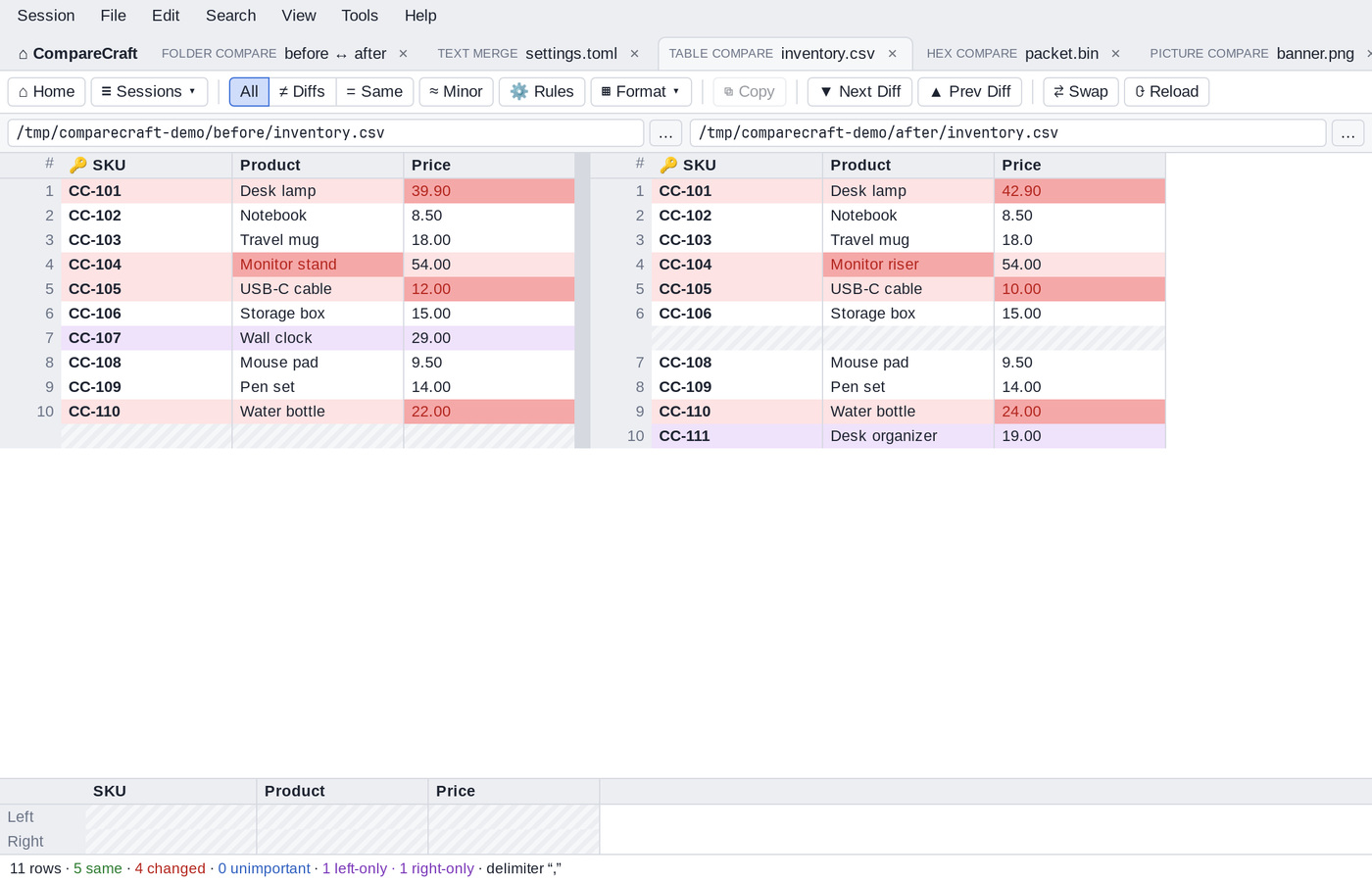
Start a table comparison
- On the Home view, click the Table Compare card or choose Session > New Table Compare, then type a file path in each path bar and press
Enter(or click … to browse). - Files with the extensions
.csv,.tsvand.tabopen in Table Compare automatically, from Quick compare, a folder comparison or the command line. The list is shown in File Formats. - In a Folder Compare, right-click a file and choose Open With > Table Compare.
The window
- The toolbar with filter, rules, format, copy, navigation, swap and reload buttons.
- The path bars for the two files.
- The two tables, side by side. The column headers are taken from the first line of the file (or numbered "Col 1", "Col 2" and so on).
- The details pane, which shows the cells of the selected row from both sides.
- The status bar, with the number of rows, how many are same, changed, unimportant, left-only and right-only, and the delimiter in use.
Use View > Row Numbers and View > Details to show or hide the row numbers and the details pane.
Read the differences
- Rows are colored like lines in Text Compare: red for important differences, blue for unimportant differences, and purple for rows that exist in one file only.
- In changed rows, the cells that differ are highlighted.
- Numbers are compared by value, so
0.10and0.1are the same.
Show all, differences or same
| Button | View menu | Shows |
|---|---|---|
| All | Show All | All rows |
| ≠ Diffs | Show Differences | Only rows that differ |
| = Same | Show Same | Only matching rows |
≈ Minor (View > Ignore Unimportant Differences) treats unimportant differences as same.
Move between differences
- ▼ Next Diff (
Ctrl+NorAlt+Down) and ▲ Prev Diff (Ctrl+PorAlt+Up) go to the next or previous difference. UpandDownmove between rows.Shift+Up,Shift+DownorShift+click extends the selection.
Choose the format
Click ▦ Format ▾ to set how the files are read:
- The delimiter: Auto-detect (default), Comma, Tab, Semicolon or Pipe.
- First Line Contains Column Names (on by default): use the first line as the column headers instead of comparing it as data.
Key columns
By default, rows are aligned by their content. If your data has an identifying column, such as an ID or a code, make it a key column: rows with the same key are then compared with each other, wherever they are in the file.
- Click a column header to make it a key column (it shows 🔑). Click it again to remove the key.
- Or right-click a column header and choose Key Column.
- Or enter the column numbers in Key columns: in the rules panel.
Comparison rules
Click ⚙ Rules (or Session > Session Settings (Rules)…) to show the rules panel:
- Key columns: the columns used to match rows between the files, as a comma-separated list of column numbers starting at 1. Leave it empty to align rows by content.
- Unimportant columns: columns whose differences are unimportant, as a comma-separated list of column numbers. Key columns are always important. You can also right-click a column header and choose Unimportant Column.
- Unimportant text differences: Character case (off by default) and Whitespace (on by default). When checked, differences of that kind are unimportant.
- Numeric tolerance: numbers that differ by no more than this are unimportant differences (0 means exact). Choose absolute for a fixed amount or relative (%) for a percentage.
Copy rows
Select rows on one side and click ⧉ Copy (Ctrl+C or Ctrl+Insert, Edit > Copy). The rows of the side you clicked are copied to the clipboard as delimited text.
Other commands
- ⇄ Swap (Session > Swap Sides) exchanges the two files.
- ⟳ Reload (
F5, Session > Reload) reads the files again. - File > Open with Default Application and File > Show in File Manager (on macOS: Reveal in Finder) act on the file of the current side.
- Session > Save Session (
Shift+Ctrl+S) saves the comparison with its rules and key columns. See Sessions.
Right-click the table for a context menu with Copy, the navigation and filter commands, Reload, Swap Sides, Open with Default Application and Show in File Manager.